Installing and upgrading packages
The Package object
Everything you ask of kubepkg is a Package. kubepkg install writes these objects for you. You can also write them yourself and keep them in Git like any other manifest:
apiVersion: kubepkg.dev/v1
kind: Package
metadata:
  name: cert-manager          # the package name
spec:
  version: "~1.21"            # semver constraint; empty accepts any version
  variant: default            # which variant of the package
  repository: ""              # only this Repository; empty means all of them, by priority
  components:                 # per-component settings, by component name
    cert-manager:
      values:
        replicaCount: 2
        prometheus: {servicemonitor: {enabled: true}}
  upgrade:
    atomic: true              # roll the whole package back on failure, when that is safe
    timeout: 10m              # how long each component has to become ready
  revisionHistoryLimit: 10    # PackageRevisions to keep
  crdPolicy: Retain           # Retain or Delete the package's CRDs on removal
Choosing versions
spec.version is the policy for upgrades:
| Constraint | Means |
|---|---|
1.21.2 |
exactly this version; the package never moves on its own |
~1.21 |
any 1.21.x; the package follows patch releases as the repository gains them |
^1 or >=1.20 <2 |
any 1.x from 1.20 on |
| empty | the newest version in the repository |
kubepkg install cert-manager with no constraint writes ~X.Y of the newest version, so the package follows patch releases but not minor ones. kubepkg install cert-manager@1.21.2 pins it. When the operator refreshes a repository and finds a newer version that matches, it upgrades the package.
Several builds of one upstream version are possible, for example 1.9.0 build 1 and build 4. A higher build is newer. Constraints match the upstream version only.
Plan, install, remove
kubepkg plan virtualization cert-manager@~1.21     # resolve and show; changes nothing
kubepkg install virtualization cert-manager@~1.21  # show the same plan, ask, then write Packages
kubepkg install virtualization --yes               # without asking, for scripts
kubepkg remove virtualization --autoremove --yes
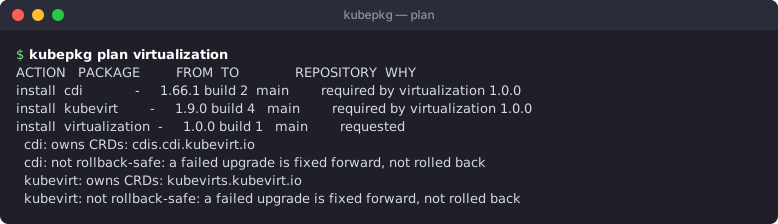
install resolves the named packages together with everything they require, against the repositories the cluster is subscribed to. Requirements that are already installed and satisfied are kept as they are. Packages pulled in only as requirements are marked with the kubepkg.dev/dependency annotation. remove --autoremove uses that mark to remove requirements nothing needs any more. remove refuses to remove a package while a package that stays requires it, directly or as the only provider of a capability. A removed package's CRDs stay by default (crdPolicy: Retain), and their fields stay owned by kubepkg's operator. Installing the same software later with another tool, for example helm install, may then report server-side apply conflicts on those CRDs. Add --force-conflicts, or let kubepkg install it again.
Values
Each component's values are merged in this order, later ones winning:
- the chart's own
values.yaml; - the platform values Secret, when the operator has one (
valuesSecretin the chart); - the package's defaults, set in the recipe or in the
PackageSourcecomponent'svalues; - your values in
Package.spec.components.<name>.values.
To change values, edit the Package:
kubectl patch package cert-manager --type merge \
  -p '{"spec":{"components":{"cert-manager":{"values":{"replicaCount":2}}}}}'
To turn off one component of a package, use components.<name>.enabled: false. This is useful for an optional part, such as a dashboard bundled with a tool.
Watching what happens
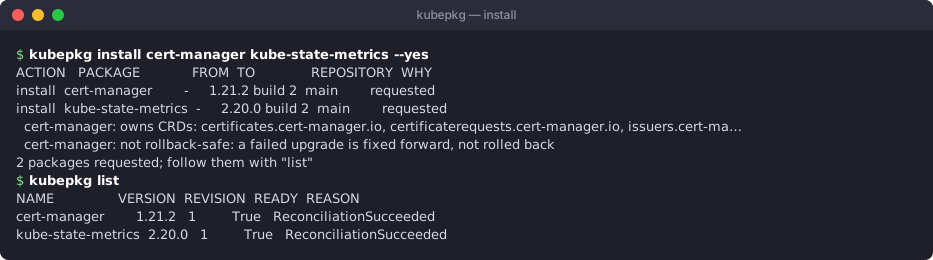
kubepkg list                    # every package: version, revision, readiness
kubepkg history cert-manager    # its revisions
kubectl get packages            # the same, from kubectl
kubectl describe package cert-manager
When a package is not ready, its Ready condition says why:
| Reason | Means | What to do |
|---|---|---|
Progressing |
a revision is being applied | wait |
RequirementsNotMet |
a required package is missing or not ready; the message names it | install it, or wait for it |
VersionMismatch |
the hand-written PackageSource does not satisfy spec.version |
fix one of them |
VersionNotAvailable |
no repository offers a matching version, or the repository has not loaded yet | check kubepkg search and kubectl get repositories |
Conflict |
an installed package conflicts with this one | remove one of them |
CRDOwnershipConflict |
another package owns a CRD this one ships | remove the other package, or drop the CRD from one of them |
VariantNotFound |
the package has no such variant | fix spec.variant |
ConflictingRequirements |
packages that require this one pass different values for the same key, or ask for different variants; the message names them | change or remove one of them; what runs now keeps running |
RolledBack (ready) |
the package runs an earlier revision you asked for with kubepkg rollback |
change the Package, or set kubepkg.dev/retry, when you want it to follow its spec again |
UpgradeRolledBack |
the last upgrade failed and the package went back to the previous revision | read the message and fix the cause; the operator tries again on its own, or set kubepkg.dev/retry to try now |
UpgradeFailed |
the last install or upgrade failed and could not be rolled back | fix forward: a corrected version or values; the operator tries again on its own, or set kubepkg.dev/retry to try now |
Failed installs and upgrades are tried again
A change that failed is tried again by the operator, without anybody asking: first 30 seconds after the failure, then after twice as long each time, at most every 10 minutes. Many failures go away on their own, such as a registry that was down or a requirement that was still starting, and a cluster nobody watches should not stay broken because of them. The Package shows where it stands:
status:
  retry:
    attempts: 3                          # failed three times so far
    nextAttempt: "2026-10-12T10:07:30Z"  # when the operator tries again
The Ready message says the same. A change to what the Package resolves to is tried at once, without waiting: an edit to the Package, a new build in the repository that fixes the problem, or the annotation kubepkg.dev/retry set to a new value:
kubectl annotate package cert-manager kubepkg.dev/retry="$(date +%s)" --overwrite
Every try is a revision, so kubepkg history shows each of them; while a change keeps failing, older revisions are pruned down to revisionHistoryLimit, never the one a failed upgrade returns to. The operator flags --retry-backoff and --retry-backoff-max (chart values retry.backoff and retry.maxBackoff) change the waits. A rollback you asked for is not undone by retries: it holds until the Package changes.
A package whose charts cannot be fetched, for example while a registry is down, reports InvalidConfiguration and is looked at again the same way: after 30 seconds at first, then after waits that grow with how long it has been failing, at most 10 minutes.
Rolling back by hand
kubepkg history cert-manager
kubepkg rollback cert-manager            # to the revision before the current one
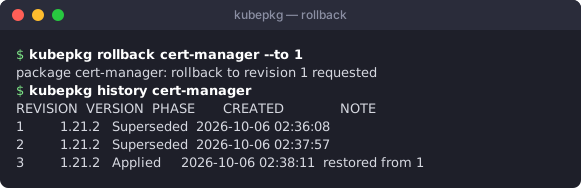
kubepkg rollback cert-manager --to 1     # to a given revision
A rollback re-applies the recorded state of that revision as a new revision: the same charts and the same values. Once that state runs, the package is ready with the reason RolledBack. It holds that state even though the Package object may still ask for something else. It moves forward again on the next change to what the Package resolves to: an edit to the Package, a newer matching version in a repository, or the annotation kubepkg.dev/retry set to a new value. If you want to stay where you rolled back to, make the Package say so: pin the version, or revert the values.
Pinning a package locally
A PackageSource written by hand overrides the repositories for that package. Use one to install a build that is not in any repository, or to patch one cluster:
kubectl apply -f my-cert-manager-source.yaml # kind: PackageSource, metadata.name: cert-manager
The operator never replaces a PackageSource it did not write. To go back to the repositories, delete the hand-written source.
Ignoring a requirement
Sometimes you know better than the package. For example, a requirement may be satisfied by something kubepkg cannot see. spec.ignoreDependencies: [name] skips that requirement for this package. Use it sparingly: kubepkg can no longer order the installation or check the requirement for you.